Author: kanweiwei

  • How to use the image compression feature

    This tutorial is applicable to: eo2suite desktop client

    Introduction

    In the eo2suite desktop version 2.5.0, a new ” image compression ” feature is added to address the slow loading problem of collaboration caused by large images in user documents. This feature can intelligently compress the image size in the document (supporting JPEG/PNG format), which can reduce the image space by 50%-80% while maintaining acceptable clarity for the human eye.

    Methods/Steps

    Step 1: Open the document

    1. Start the eo2suite desktop client and open the document that needs to compress images.
    2. Make sure the document contains images that need to be compressed (currently only JPG/PNG formats are supported)

    Step 2: Enable image compression

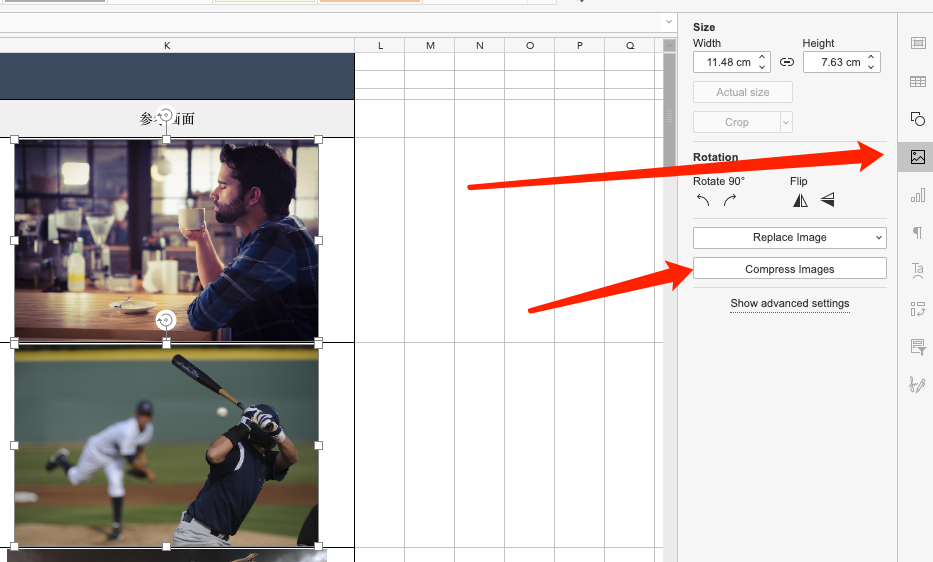
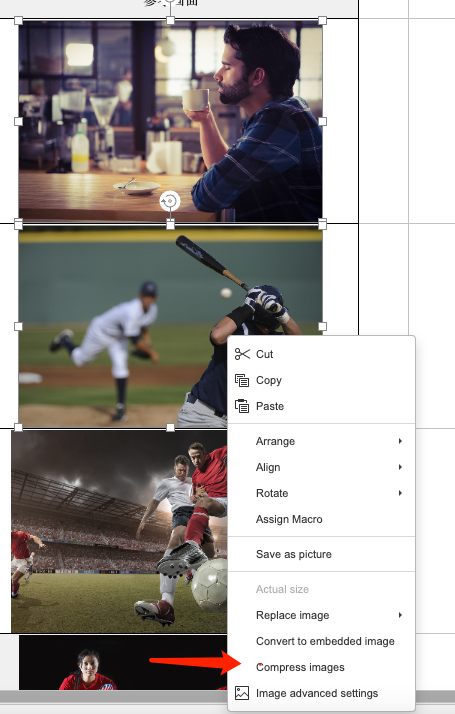
    1. Select the picture, you can hold down the ctrl key to select multiple pictures
    2. Click [Image Settings] on the right toolbar and select [Compress Images] in the right panel.
    3. Or right-click the image and select [Compress Images] from the contextmenu .

    Step 3: Set compression parameters

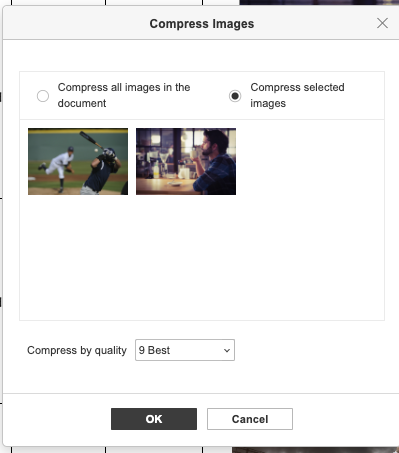
    In the pop-up window, you can select:

    • Compress all images in the document
    • Compress selected images

    If the document contains many images that need to be compressed, please select [Compress all images in the document] directly.

    Compression options : 9 best, 8 high quality, 5 quality, 3 low quality

    Step 4: Perform compression

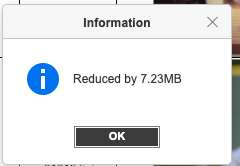
    After confirmation, click  “OK” and wait for the progress bar to complete (large documents take about 10-30 seconds)

    Frequently asked questions

    Q: Will the image become blurry after compression?

    A: It will not be blurred and the image will maintain its original resolution.

    Q: Can I restore a single picture?

    A: It cannot be restored. Please make sure to back up the document before operation.

    Q: Does it support compressing images in PDF?

    A: Currently only the three Office document types are supported.

    Tip: The original size of the sample document is 9.32MB. Select the default “9 Best”. The compressed document size is 2.11MB, which reduces the space by 77.3%.

  • eo2suite Desktop Supports WPS Cell Image (DISPIMG) Formula Parsing

    Background

    Imagine you’re creating a spreadsheet and need to insert product images into certain cells. In Excel, you can only place images on the “top layer” of the spreadsheet, like sticking a sticker on the table. These images are independent, meaning they don’t move or copy along with the cells when you adjust them.

    WPS creatively addresses this issue with the DISPIMG formula. This solution “embeds” the image into the cell, making it an integral part of the cell. As a result, no matter how you move or copy the cell, the image follows seamlessly.

    Implementation Mechanism

    WPS’s cell image feature is achieved through the collaboration of three key files:

    1. Worksheet Reference (sheet1.xml) – The “Index Card” of Images

    Think of searching for a book in a library by first checking the index card. The DISPIMG formula here acts as an index card, recording “which image to display in this cell.”

    In the worksheet, the DISPIMG function is used to reference cell images:

    <sheetData>
        <row r="1" ht="14.25">
            <c r="C1" t="str">
                <f>DISPIMG("ID_A16C8CE6E39B4F25934D584A1C41E1E1",1)</f>
                <v>=DISPIMG("ID_A16C8CE6E39B4F25934D584A1C41E1E1",1)</v>
            </c>
        </row>
    </sheetData>

    The DISPIMG function takes two parameters:

    • The unique identifier (ID) of the image
    • The display mode of the image

    2. Image Definition (cellimages.xml) – The “Profile Card” of Images

    Each image has a detailed “profile card” (stored in cellimages.xml), recording all important information about the image:

    • The unique number of the image (like an ID number)
    • The display method of the image (how to place it, size, etc.)
    • Clues to the actual storage location of the image

    Notably, WPS designed this “profile card” using the same standard format as Office documents (OOXML). This not only ensures that other software can understand this information but, more importantly, allows developers to reuse code logic for handling traditional Office floating images, significantly reducing redundant development work.

    <?xml version="1.0" encoding="UTF-8" standalone="yes"?>
    <etc:cellImages
        xmlns:xdr="http://schemas.openxmlformats.org/drawingml/2006/spreadsheetDrawing"
        xmlns:r="http://schemas.openxmlformats.org/officeDocument/2006/relationships"
        xmlns:a="http://schemas.openxmlformats.org/drawingml/2006/main"
        xmlns:etc="http://www.wps.cn/officeDocument/2017/etCustomData">
    
        <etc:cellImage>
            <xdr:pic>
                <!-- 1. Image Identification Information -->
                <xdr:nvPicPr>
                    <xdr:cNvPr id="1773908100" name="ID_A16C8CE6E39B4F25934D584A1C41E1E1"/>
                    <xdr:cNvPicPr>
                        <a:picLocks noChangeAspect="1"/>
                    </xdr:cNvPicPr>
                </xdr:nvPicPr>
    
                <!-- 2. Image Resource Reference -->
                <xdr:blipFill>
                    <a:blip r:embed="rId1"/>
                    <a:stretch/>
                </xdr:blipFill>
    
                <!-- 3. Image Display Properties -->
                <xdr:spPr bwMode="auto">
                    <a:xfrm>
                        <a:off x="0" y="0"/>
                        <a:ext cx="59436000" cy="39623999"/>
                    </a:xfrm>
                    <a:prstGeom prst="rect">
                        <a:avLst/>
                    </a:prstGeom>
                </xdr:spPr>
            </xdr:pic>
        </etc:cellImage>
    </etc:cellImages>

    3. Resource Mapping (_rels/cellimages.xml.rels)

    Finally, a manifest (cellimages.xml.rels) is needed to record the actual storage location of each image, like a shelf list in a library, telling you exactly which shelf to find the book on.

    <?xml version="1.0" encoding="UTF-8" standalone="yes"?>
    <Relationships xmlns="http://schemas.openxmlformats.org/package/2006/relationships">
        <Relationship
            Id="rId1"
            Type="http://schemas.openxmlformats.org/officeDocument/2006/relationships/image"
            Target="media/image1.png"/>
        <Relationship
            Id="rId2"
            Type="http://schemas.openxmlformats.org/officeDocument/2006/relationships/image"
            Target="media/image2.png"/>
    </Relationships>

    Reference Chain Explanation

    1. Worksheet to Image Definition Association

    • The DISPIMG function in the worksheet references the image via the image ID
    • The image ID corresponds to the name attribute of xdr:cNvPr in cellimages.xml
    • This ensures each cell can accurately find its corresponding image definition

    2. Image Definition to Actual Resource Association

    • cellimages.xml references the image resource via the r:embed attribute
    • The value of r:embed (e.g., “rId1”) corresponds to the Id in cellimages.xml.rels
    • cellimages.xml.rels maps this Id to the actual image file path

    3. Resource Storage Structure

    xl/
    ├── _rels/
    │   └── cellimages.xml.rels
    ├── media/
    │   ├── image1.png
    │   └── image2.png
    └── worksheets/
        └── sheet1.xml
    └── cellimages.xml

    Why This Design?

    The ingenuity of this design lies in:

    1. Modularity: Each part has clear responsibilities, like the index system, archive system, and actual shelves in a library being managed separately. This facilitates maintenance and updates.
    2. Standardization: Using the universal OOXML standard, like using a universal book classification system, ensures other software can also understand this information.
    3. Flexibility: Images can easily move with cells, like books can be adjusted between shelves effortlessly, while the index system updates automatically.
    4. Efficiency: Through IDs and reference relationships, the system can quickly locate the needed images, like a library’s coding system makes finding books simple and efficient.

    This design makes the entire feature both practical and reliable, like a well-functioning library management system, with each part performing its role while cooperating closely.

    Frontend Rendering Implementation

    In the frontend implementation, special handling of the DISPIMG formula rendering logic is required:

    1. Formula Identification
    • In non-editing mode, first identify if the cell content is a DISPIMG formula
    • Parse the formula parameters to get the image ID and display mode
    1. Image Rendering
    • Get the corresponding image resource based on the image ID
    • Use the Canvas API for image drawing
    • Use the canvas.clip() API to restrict the drawing area within the current cell, preventing images from overflowing into other cells
    • Use the drawImage() API to draw the image onto the canvas

    Example code:

    function renderCellImage(ctx, cell, image) {
      // Save the current canvas state
      ctx.save();
    
      // Create a clipping path (restrict to cell bounds)
      ctx.beginPath();
      ctx.rect(cell.x, cell.y, cell.width, cell.height);
      ctx.clip();
    
      // Draw the image
      ctx.drawImage(image, cell.x, cell.y, cell.width, cell.height);
    
      // Restore the canvas state
      ctx.restore();
    }

    Conclusion

    WPS’s cell image feature achieves image binding with cells through ingenious file organization and reference mechanisms. This implementation not only maintains compatibility with the standard Office Open XML but also provides flexible image management and display control capabilities. Understanding this implementation mechanism is of significant reference value for developing similar features or achieving file format compatibility.
  • Image Compression Implementation in Office Documents for Eo2suite Desktop

    Introduction

    In today’s digital office environment, Office documents have become a crucial medium for daily corporate collaboration. With the widespread use of high-definition images, the pictures in documents not only enrich the content and enhance readability and professionalism but also bring a series of technical challenges:

    • Storage Burden: A large number of high-definition images significantly increase the document size, occupying valuable corporate storage resources.
    • A single high-definition image can be several MB in size.
    • A document often contains dozens of images.
    • Corporate storage costs remain high.
    • Transmission Efficiency: Oversized files affect the upload and download speed of documents.
    • Slow downloads when network bandwidth is limited.
    • Worse experience in mobile office scenarios.
    • Increased server pressure when accessed by multiple users simultaneously.
    • Collaboration Experience: Slow document loading affects the efficiency of multi-user collaboration.
    • Long time to open large documents.
    • Page rendering lag.
    • High real-time collaboration latency.
    • Impacts team productivity.
    • Version Management: Version control of large documents also faces challenges.
    • Occupies more version storage space.
    • Increases time for historical version comparison.
    • Raises document backup costs.

    To optimize these issues, we developed an intelligent image compression feature in Eo2suite Desktop. This feature effectively reduces document size while maintaining visual quality, improving collaboration efficiency. This article will detail the design and implementation of this feature from multiple dimensions, including technical selection, compression strategies, and performance optimization.

    Technical Solution Overview

    Our technical selection is primarily based on the following considerations:

    1. Sharp: Chose Sharp as the core image processing library.
    • Implemented based on libvips, ensuring high performance with C++.
    • Low memory usage, suitable for batch processing.
    • Supports mainstream image formats with excellent compression effects.
    1. Electron Utility Process
    • Isolates CPU-intensive compression tasks into independent processes.
    • Prevents blocking the main process, ensuring smooth interface response.
    1. p-limit
    • Intelligently controls the number of concurrent tasks.
    • Optimizes system resource utilization.

    Compression Strategy Details

    In Eo2suite Desktop, we mainly handle JPEG and PNG, the two most common image formats. For different formats, we adopted different compression strategies.

    JPEG Compression Strategy

    JPEG format is mainly used for color-rich images like photos. We adopted the following strategy:

    1. Quality Control
    • Default quality value set to 75.
    • Evaluates original image quality via the estimateQuality function.
    • Compressed quality does not exceed the original image quality.
    1. Optimization Options
    • Enables mozjpeg optimization.
    • Retains important metadata.
    • Removes unnecessary color profiles.

    Example code:

    async function compressJPEG(buffer: Buffer, qualityFactor: number) {
      const originalQuality = await estimateQuality(buffer);
      const targetQuality = Math.min(75, originalQuality);
    
      return sharp(buffer)
        .jpeg({
          quality: Math.round(targetQuality * qualityFactor),
          mozjpeg: true,
        })
        .toBuffer();
    }

    Why Evaluate Original Image Quality?

    Evaluating original image quality is a crucial step in image compression for several reasons:

    1. Avoid Over-compression
    • If the image is already compressed (e.g., quality value 60), using a higher quality value (e.g., 75) may increase file size.
    • By evaluating original image quality, we ensure compressed quality does not exceed the original, avoiding unnecessary file size increase.
    1. Intelligent Quality Control
    • JPEG image quality ranges from 0-100.
    • By analyzing quantization tables, we estimate the original compression quality.
    • This allows dynamic adjustment of compression parameters based on original quality rather than using fixed values.
    1. Maintain Quality Balance
    • Further compressing highly compressed images may lead to noticeable quality loss.
    • Evaluating original image quality helps find a better balance between file size and visual quality.

    Quality Evaluation Implementation Principle

    We estimate image quality by analyzing JPEG file quantization tables:

    1. Benchmark Quantization Table
    • Uses the standard JPEG luminance quantization table (quality value 50).
    1. Comparison Algorithm
    • Extracts quantization tables from the image.
    • Compares actual quantization tables with the benchmark.
    • Calculates scaling factor and estimates quality using empirical formulas.
    1. Quality Calculation
    • Scaling factor less than 1 indicates quality below 50.
    • Scaling factor greater than 1 indicates quality above 50.
    • Final result is capped within 0-100 range.

    This method allows intelligent control of the compression process, preventing file size increase post-compression.

    PNG Compression Strategy

    PNG format is often used for images requiring transparency and icons. The compression strategy is as follows:

    • Uses the highest compression level (level 9).
    • Enables palette mode.

    Why Use Palette Mode?

    Palette mode is a significant optimization technique in PNG format with the following advantages:

    1. Data Storage Optimization
    • Traditional PNG uses RGB/RGBA mode, requiring 3-4 bytes per pixel.
    • Palette mode stores color information in a lookup table.
    • Each pixel only needs an index value (usually 1 byte) to reference the color table.
    1. Application Scenarios
    • Best for images with limited colors (e.g., icons, logos).
    • Significantly reduces file size when images have many repeated colors.
    • Ideal for flat design UI elements.
    1. Compression Efficiency
    • Reduces pixel data storage space.
    • Improves DEFLATE algorithm compression efficiency.
    • Significantly reduces file size while maintaining visual quality.
    1. Smart Conversion
    • Sharp library automatically evaluates suitability for palette mode.
    • Degrades to standard RGB/RGBA mode if too many colors.
    • Ensures final output image quality.

    General Optimization Strategy

    For all image formats, we adopt the following general strategies:

    1. Threshold Control
    • Sets minimum compression threshold (50KB).
    • Saves only when compression effect is significant.
    • Avoids over-compression.
    1. Performance Optimization
    • Uses Utility Process for compression tasks.
    • Controls concurrency based on CPU cores.
    • Executes in batches during bulk processing.

    Concurrency Control Implementation

    When processing a large number of images, we use the p-limit library to control the number of concurrent tasks. The specific implementation is as follows:

    1. Dynamic Concurrency Setting
    // Determines concurrency based on CPU cores
    const concurrency = Math.max(os.cpus().length - 1, 1);
    const limit = pLimit(concurrency);
    1. Task Queue Management
    // Maps all image compression tasks to concurrency-limited Promises
    const tasks = images.map((image) =>
      limit(async () => {
        try {
          const imageBuffer = await readFile(image);
          // ... Compression logic ...
    
          completed++;
          // Updates progress
          const progressPercentage = Math.round((completed / totalImages) * 100);
          process.parentPort.postMessage({
            type: 'loading',
            payload: {
              progress: `${progressPercentage}%`,
            },
          });
    
          return sizeReduction;
        } catch (error) {
          console.error(`Error processing ${image}:`, error);
          return 0;
        }
      })
    );

    Conclusion

    In summary, we developed a practical feature in Eo2suite Desktop – Office document image compression. This feature directly addresses the issues of large document sizes and slow loading, making collaboration smoother for users.

    References

    1. Sharp – High performance Node.js image processing
    2. Electron Utility Process – Utility Process
    3. p-limit – Run multiple promise-returning & async functions with limited concurrency